
In this tutorial we will show you how to setup File/Image Upload in PHPMaker. We will use the demo database for demonstration.
Fields in Table "Cars":
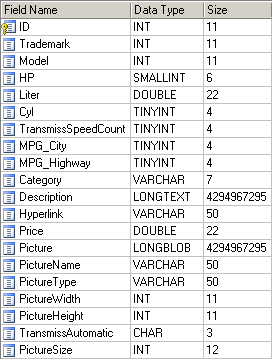
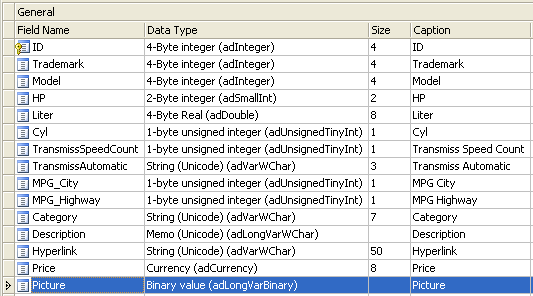
We want to setup the "Picture" field in the "Cars" table for image upload to database.
Steps to Setup File/Image Uploading
1. Loading PHPMaker
Open PHPMaker and connect to the demo database.
2. Setting File Upload Properties
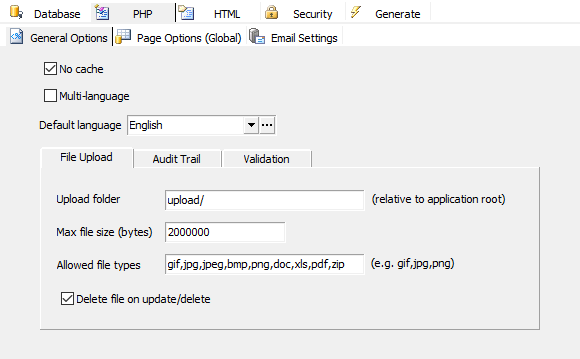
Go to the PHP -> General Options tab.
Specify a upload folder relative to application root.
If you want to change the file size limit on uploading, enter a limit in bytes for the Max file size field. The installation default is 2,000,000 bytes.
Note: Configurations of PHP, web server and database affects max file size also, read PHP Settings.
In Allowed file type, enter the file extensions that you allow user to upload.
Then, you need to enter the Upload folder. (Do NOT leave it empty.) This folder should be a subfolder relative to the application root of the PHP application. For example, you can enter "uploads/" (use slashes "/" as path delimiter). If the root of the PHP application is C:\Inetpub\wwwroot\projectname\, then the upload folder is C:\Inetpub\wwwroot\projectname\uploads\.
Make sure that the Web server user has read/write access to the folder. See Application Root.
Since we upload to database, the uploaded files will be stored in database as binary data, the setting Delete file on update/delete is unimportant.
3. Setting File/Image Properties
To set up the file/image properties for the "Picture" field, select the "Cars" Table on Database pane and then click on the "Picture" field.
You can optionally set up the following fields in Edit Tag panel. If the files to be uploaded are of normal browser supported image types (e.g. jpg/gif), you can skip the file type field, otherwise the File Type Field should be set.
File type field - save the file content type of the
uploaded file/image (Mandatory)
File name field - save the name of uploaded file/image
(Optional)
File size field - save the size of uploaded file/image
(Optional)
Image width field - save the width of the image (Image
Only, Optional)
Image height field - save the height of the image (Image
Only, Optional)
Once setup, PHPMaker will use these fields for storing/displaying the uploaded file/image information.
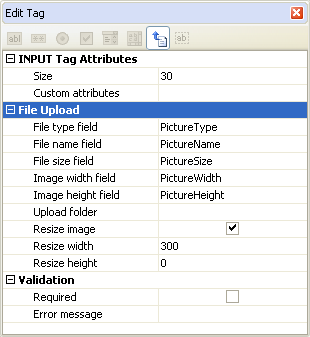
Again, since we upload to database, the uploaded files will be stored in database as binary data, there is no need to set the Upload folder.
If you are uploading image, you can choose to resize the image. Check Resize image and enter the Resize width and Resize height.
4. Change File/Image Display Style
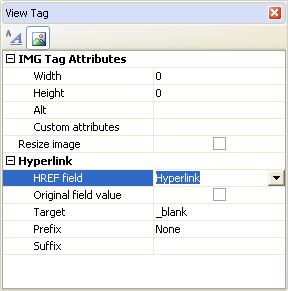
You can choose to display the file/image field using the Formatted
Text  View Tag or Image
  View Tag. Default is Formatted Text.
Formatted Text View Tag will display the field as a hyperlink to the file/image.
Image View tag will display the field as image using <IMG> tag and is also hyperlinked to the image. To change image display style to Image, click on the Image icon in the View Tag Panel for the settings.
If the dimensions of the image you want to display are different from the stored image, you can choose to Resize image. If enabled, the image will be resized to the specified width and/or height on display. Again, resizing requires PHP GD extension, see the note above.
If you want to add hyperlink to the image, set the HREF field. If you want the image linked to the file, select the field itelf as the HREF field. If you want to image linked to other URL, select another field which stores the URL. You can also optionally set the target of the hyperlink.
5. PHP Script Generation
Click the Generate button and PHPMaker will generate the required PHP scripts automatically.
6. Running the PHP Application
Click on the link to the Cars table. You should now be able to add, view, edit and delete records with file/image fields.
Formatted Text View Tag will display the field as a hyperlink to the file/image if you have selected the field itself as the HREF field:

Image View tag will display the field as image using <IMG> tag and is also hyperlinked to the image:

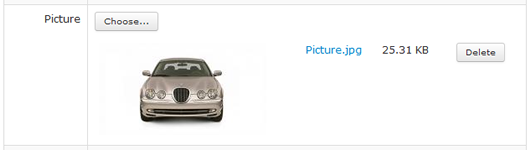
The Add/Edit page will allow you to delete or upload another file/image:
Also see: