
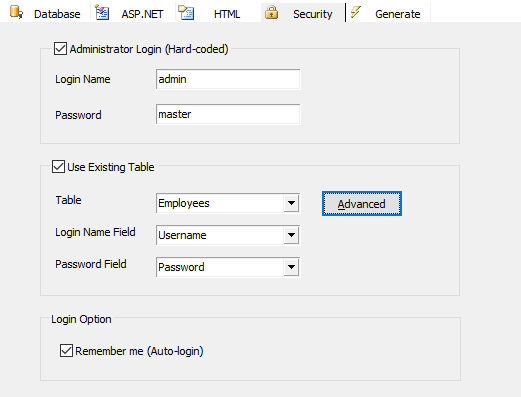
Field Description:
| Administrator Login (Hard-Coded) | Administrator user id and password |
| Login Name | Login Name for administrator |
| Password | Password for administrator |
| Use Existing Table | Link to existing table for login name and password validation |
| Table | Existing table in database containing login name and password information |
| Login Name Field | Login Name field in table used for authentication |
| Password Field | Password field in table used for authentication |
| Login Options | Login options in the login page: Remember me (Auto-login) - Auto login until the user logout explicitly If enabled, a "Remember me" checkbox will be shown in the Login page, a few cookies will be placed on the user's computer to identify the user, meaning that the user do not have to type username and password every time he/she visit the site. You should advise your users not to use this feature on a public or shared computer, as any other user of the computer will be able to access the account. |
Advanced Security
ASP.NET Maker's Advanced Security feature allows you to setup User ID, assign User
Levels to users and create a complete user registration system. To setup, click the [Advanced] button.
ASP.NET Maker supports two types of security - User ID and User Level. User ID Security secures data at record level. User Level Security secures data at table level. They complements each other and they can work independently or together. Users get their User ID and User Level after login. Before login, their identities are unknown and they are Anonymous Users.
User ID
User ID Security secures data at record level. Protected tables must have an User ID field for identifying which user a record belongs to. The User ID field names can be different in tables though. When User ID security is enabled, users can only access their own data.
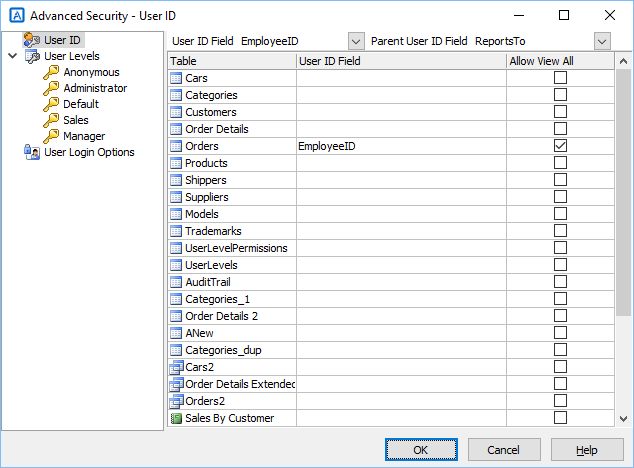
Steps to setup User ID security for different tables/views:
User Level
User Level Security secures data at table level. Each user level is granted with specific permissions to tables in the database.
There are 2 types of User Level security:
1. Static User Levels - the User Levels and the permissions are defined in this form and the User Levels are not to be changed after script generation.
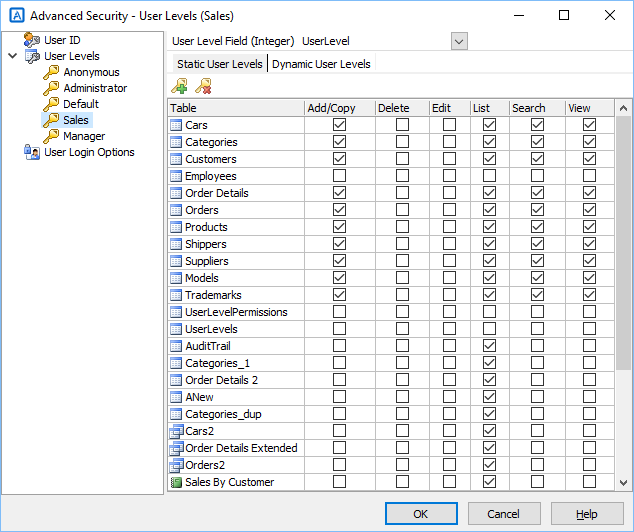
Steps to setup static User Level security for different tables/views:
 icon the add an user level and
  icon to delete an user level.
2. Dynamic User Levels - the User Levels and the permissions are defined in 2 tables in the database, the User Levels can still be changed with the generated scripts.
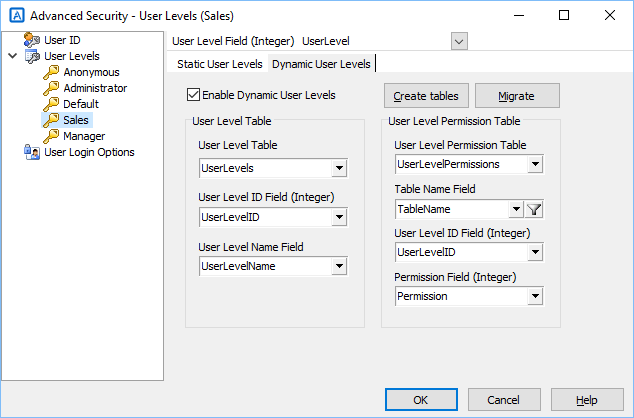
Steps to setup dynamic User Level security for different tables/views:
Note: A script (named userpriv.cshtml) will be generated for administrators to setup dynamic user levels at runtime, if you do not need to show all tables in this script, click the button next to the [Table Name Field] and select the table you want to include.
The User Level Table and User Level Permission Table must have the following fields, note the data types, User Level ID and the Permission fields must be of integer type, the field names can be different though:
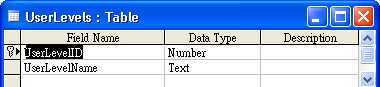
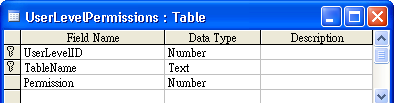
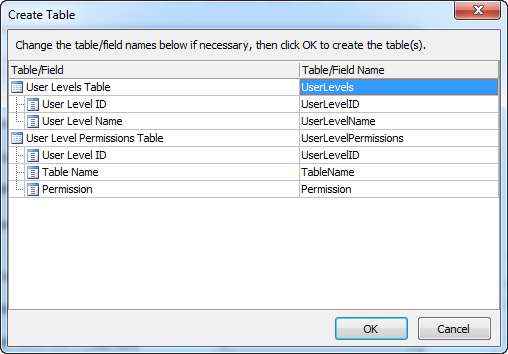
If you want ASP.NET Maker to create these 2 tables in your database, click the [Create tables] button, the following form will display for you to change the table/field names if necessary. You can change the table/field names and then click OK to continue.
If you have projects created by previous versions of ASP.NET Maker you may want to use dynamic User Levels and migrate the previously defined static User Levels in the project to the database. After selecting or creating the User Level and User Level Permission tables/fields, just click the [Migrate] button to let ASP.NET Maker do that for you.
After setting the user levels, ASP.NET Maker will populate the user levels to the User Level field's Edit Tag (also see Field Setup) so administrators can assign user levels using the generated pages.
There are three built-in user levels:
Anonymous - Anonymous user level is a built-in user level for the anonymous user (i.e. users that have not logged in). The User Level ID of the anonymous user is -2.
Administrator - Administrator user level is a built-in user level that has all permissions plus the privileges to modify User IDs and User Levels. Its permissions are same as that of the hard-coded Administrator Login
Default - Default user level is built-in user level with user level = 0. Since User Level field is an integer field, if you set a default value of 0 for this field, this user level will become the default user level for the user after registration and before the Administrator assigning another higher user level.
From v2019+, administrators can enable users to (partially) administer user level permissions by performing the following steps:
User Login Options
User Login Options allows you to create a complete user registration system for your Web site, with options
to let user register, change password and recover password.
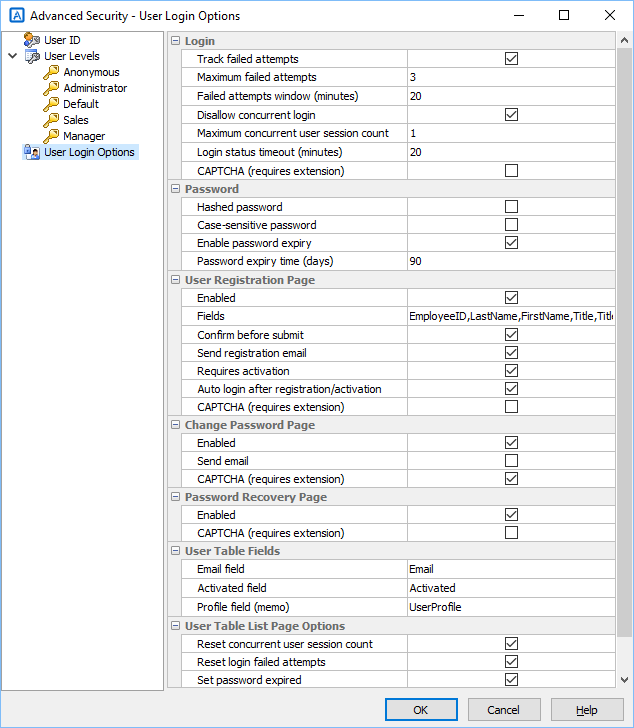
| Login | |
| Track failed attempts | If enabled, number of failed login attempts (invalid password) will be tracked. If exceeded, the user will be locked out and the password must be reset. |
| Maximum failed attempts | The maximum number of failed login attempts |
| Failed attempts windows (minutes) | The time window, in minutes, during which failed password attempts are tracked. |
| Disallow concurrent login | If enabled, only one session is allowed for each user (except the hard-coded Administrator). If one user has already logged in, other users trying to login with the same username (and password) will be rejected. Note Users are distinguished by Session ID as recognized by the web server. If you login again with your PC in another window of the same browser or in just another tab of your browser, you can still login. If you login again with another browser or another PC, the Session ID will be different and the login will be rejected. |
| Maximum concurrent user session count | For use with Disallow concurrent login. By default only one session is allowed for each user. But you may want to give more than one chance to user so they will not be rejected after unexpected incidents such as a system crash. Note Please be reminded that this option somewhat compromise the Disallow concurrent login feature. Use this option discreetly and always use the smallest possible value. |
| Login status timeout (minutes) | The number of idle minutes after which the login status will be considered as logged out and login will be allowed again. If a logged-in user does not explicitly log out (for example, close the browser directly), the user session is not closed and the user's login status will remain as "logged in". Attempts to login again will fail. This timeout setting ensures login will be allowed again after a period of idle time. |
| CAPTCHA (requires extension) | Optionally requires user to type letters or digits from a distorted image that appears on the screen.. Note Requires CAPTCHA extension, click Tools->Extensions from the main menu to enable. Also see Third-party Tools. |
| Password | |
| Hashed password | Use hashed password. If the advanced setting Use password hash is enabled, HashPassword will be used to create password, otherwise md5 will be used. Notes
|
| Case-sensitive password | Use case-sensitive password |
| Enable password expiry | If enabled, user password will expire after a period of time (except the hard-coded Administrator password) |
| Password expiry time (days) | For use with Enable password expiry, user password will expire after the specified number of days |
| User Registration Page | |
| Enabled | Generate user registration page and add a link in login page. |
| Fields | Select fields (from the user table) to show in the registration page. Click the [...] button the select the fields. |
| Confirm before submit | Optionally send email confirmation after registration |
| Send registration email | Optionally send email confirmation after registration |
| Requires activation | Optionally requires user click an activation link in the email sent after registration to activate the user account. Note Send email must be enabled for sending the email with activation link. |
| Auto login after registration/activation | Optionally auto-login the user after registration or activation. Note Requires activation is enabled, the user is not activated yet after registration, auto login will be applied when the user clicks the activation link in the email. |
| CAPTCHA (requires extension) | Optionally requires user to type letters or digits from a distorted image that appears on the screen.. Note Requires CAPTCHA extension, click Tools -> Extensions from the main menu to enable. Also see Third-party Tools.
|
| Change Password Page | |
| Enabled | Generate change password page |
| Send email | Optional email confirmation after changing password |
| CAPTCHA (requires extension) | Optionally requires user to type letters or digits from a distorted image that appears on the screen.. Note Requires CAPTCHA extension, click Tools->Extensions from the main menu to enable. Also see Third-party Tools. |
| Password Recovery Page | |
| Enabled | Generate password recovery page (forgot password page) and add a link in login page. User name and password will be sent to the user's email address. |
| CAPTCHA (requires extension) | Optionally requires user to type letters or digits from a distorted image that appears on the screen.. Note Requires CAPTCHA extension, click Tools->Extensions from the main menu to enable. Also see Third-party Tools. |
| User Table Fields | |
Email address field |
Email address field in user table used for sending email |
| Activated field | Email activated field in user table used for storing the status of user. A boolean field is recommended, although an integer field or a string field will also work. Notes
|
| Profile field | A memo field for persisting all the additional user information. This field is required if the following options are used:
Note The field is also required if the advanced setting Search filter save option is set to Server, see Tools -> Advanced Settings.
|
| User Table List Page Options | |
Reset concurrent user session count |
If enabled, a new option is generated in the User Table list page for the administrator to reset the concurrent user session count for an user to 0 |
Reset login failed attempts |
If enabled, a new option is generated in the User Table list page for the administrator to reset the login failed attempts for an user to 0 |
Reset login failed attempts |
If enabled, a new option is generated in the User Table list page for the administrator to reset the login failed attempts for an user to 0 |
Set password expired |
If enabled, a new option is generated in the User Table list page for the administrator to set the password of an user as expired |
Resend registration email |
If enabled, a new option is generated in the User Table list page for the administrator to resend the registration email to an user |
Email Template
The email sending function and the email contents can be customized in the template. The following special tags are used in the email templates:
<!--$From--> is sender email address
<!--$To--> is user email address
<!--$Password--> is user password
<!--FieldName--> (without the $ symbol) is the field value. For example, <!--LastName--> is the field value of the field "LastName".
You can also dynamically change the email by code using Email_Sending event before the email is sent. (See Server Events and Client Scripts)
Also See:
Tutorial - User ID Security
Tutorial - Static User Level Security
Tutorial - Dynamic User Level Security
Tutorial - User Registration System
Tutorial - Multi-Language Project Setup