General Options
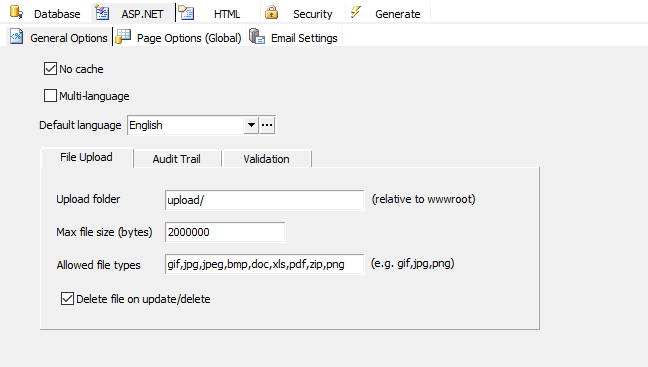
| No Cache | Whether caching is required on browser |
| Multi-Language | Enable multi-language project. If enabled, a combobox will appear on the top of the generated scripts for user to select language. See Tools for selecting languages for the multi-language project. Important
|
| Default Language | Default language of the project. It must be compatible with Charset (see HTML Settings). Default is English. There is always one default language for a project. Only the English language file (english.xml) is shipped with ASP.NET Maker. If your project is single language but you use another language, create a language file for your language (see Making Language Files), put it in the "languages" subfolder under the installation folder and then select your default language using this combobox. If you enable Multi-Language, you must select one of the selected languages as the default language. |
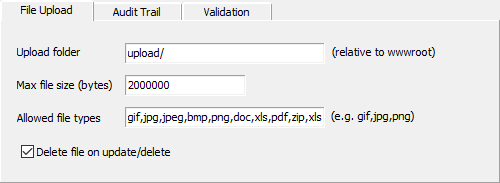
| File Upload |
Upload folder - The global folder where the uploaded files resides. If you do not enter a specific folder for a file upload field in the Edit Tag panel of the Field Setup page, all the uploaded files will be put in this folder. Notes
Max File Size - Maximum file upload size in bytes. If <= 0, default is used. Note By default the default maximum file size allowed by ASP.NET Core is 30,000,000 bytes, which is approximately 28.6MB.
Allowed file type - The allowed file extensions of the uploaded files. Separate the file extensions (without ".") by comma, e.g. gif,png,png) If blank, all file types are allowed. Delete file on update/delete - Option to delete the uploaded file when the field value is replaced, removed or if the record is deleted. |
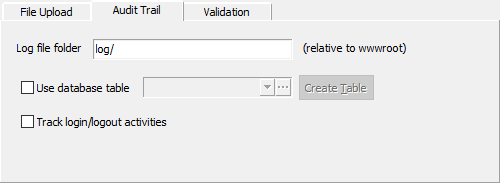
| Audit Trail |
You can choose to log activities in a log file or in a database table. Log file folder - The folder where the audit trail log file resides. Notes
Use database table - Log the activities in the specified table instead of log file. The table must have the following fields: (actual data types depend on database type)
You can create the database yourselves and select the table in the combobox, then click the [...] button to select the fields in your table. Alternatively, if you have not created the table yet, you can click [Create Table] and let ASP.NET Maker creates the table and setup the settings for you. Notes The [Create Table] button supports Access, SQL Server, MySQL, PostgreSQL and Oracle only.
Track login/logout activities - If security feature is enabled, login/logout activities will also be logged. |
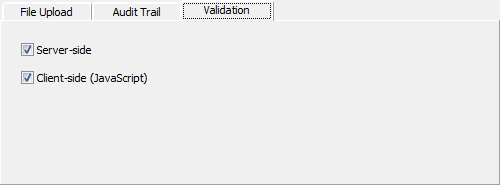
| Validation |
Server-side - Enable server-side form validation. Client-side (JavaScript) - Enable client-side form validation. Note If the available validation format in the Edit Tag panel (see Field Setup) does not fulfil your requirements, you can use your own server-side and/or client-side validation code using Server Event and Client Scripts.
|
Page Options (Global)
The following page options are global for all tables. If you want different settings for a particular table, you can use table-specific options available in the Table Setup page.
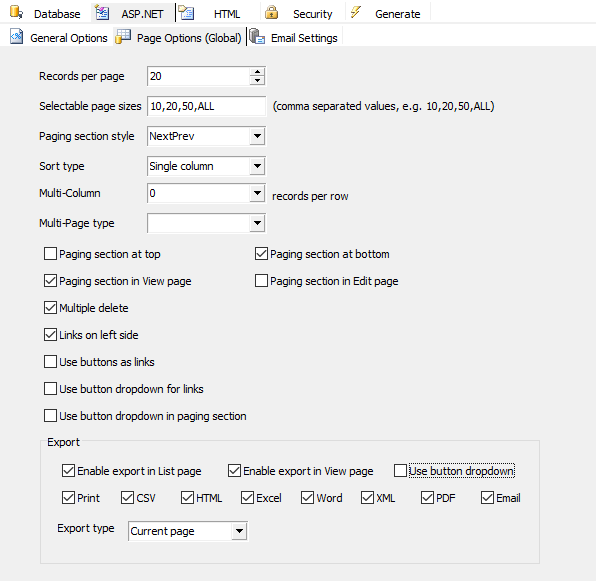
| Records per page | Number of records to be displayed on the list page of all tables. If blank or 0, default setting of 20 will be used. | ||||||||||||||||||||||||||||||||
| Selectable page sizes | Number of records to be selected by user. Comma separated values, e.g. 10,20,50,ALL. Note "ALL" (without
quotes) is supported, other values must be integers. |
||||||||||||||||||||||||||||||||
| Paging section style | "NumericPages" or "NextPrev" | ||||||||||||||||||||||||||||||||
| Sort type | None, Single column or Multiple column. If Multiple column is selected, the generated list page supports multi-column sorting by Ctrl-clicking the table header. | ||||||||||||||||||||||||||||||||
| Multiple column | Show multiple records per row. Default is 0. This feature will only take effect if the value is > 0. Possible values: 1, 2, 3, 4, 6, 12 | ||||||||||||||||||||||||||||||||
| Paging section at top | Show the paging section at top (also applies to View page) | ||||||||||||||||||||||||||||||||
| Paging section at bottom | Show the paging section at bottom (also applies to View page) | ||||||||||||||||||||||||||||||||
| Paging section in View page | Show paging section in View page also | ||||||||||||||||||||||||||||||||
| Paging section in Edit page | Show paging section in Edit page also | ||||||||||||||||||||||||||||||||
| Multiple delete | Show checkboxes in the list page for selecting multiple records to delete | ||||||||||||||||||||||||||||||||
| Links on left side | Show the links on the left instead of right | ||||||||||||||||||||||||||||||||
| Use buttons as links | Show the links in record row as a button group instead of individual icons or links. | ||||||||||||||||||||||||||||||||
| Use button dropdown for links | Show the links in record row as a button with dropdown menu instead of individual icons or links. | ||||||||||||||||||||||||||||||||
| Use button dropdown in paging section | Show the links in paging section as buttons with dropdown menu instead of individual links. | ||||||||||||||||||||||||||||||||
| Export | Enable export in List page - allow export in List pages Enable export in View page - allow export in View pages also Use button dropdown - show the export links as a button with dropdown menu. Default is showing the export links as a row of icons. Print/CSV/HTML/Excel/Word/XML/PDF/Email - Records can be exported to Print (printer-friendly), CSV, HTML, Excel, Word, XML, PDF format or sent as HTML email content. Note The fields in printer friendly version are same as in List/View page, while the fields in other format are determined by the Export setting of the field in Field Setup page.
Note that the fields in printer friendly version are same as in List/View page, while the fields in other format are determined by the Export setting of the field in Field Setup page. Export type - Determines which records to export. The follows are supported:
Notes
Notes (Export to PDF)
Comparison
|
ASP.NET Maker supports many features that can send emails. If you use these features, you'll need to specify a SMTP server.

| SMTP server | The host name or IP of the SMTP server. Note Make sure you need to specify a valid SMTP server in the network of the web server. "localhost" will not work if it is not a SMTP server. |
| SMTP server port | Port number of SMTP server. Default is 25. |
| SMTP server username | User name for SMTP server authentication. If your SMTP server does not require authentication, leave it blank. |
| SMTP server password | Password for SMTP server authentication. If your SMTP server does not require authentication, leave it blank. |
| Sender (Email address) | Email address of the sender of all emails |
| Recipient (Email address) | Email address of the recipient(s) for notification emails when a record is added/edited/deleted (if enabled). If there are multiple recipients, separate them by comma. |
| Security | Protocol used by the SMTP server. Possible value is: SSL. Note Leave this setting empty if your SMTP server does not use such protocol. |