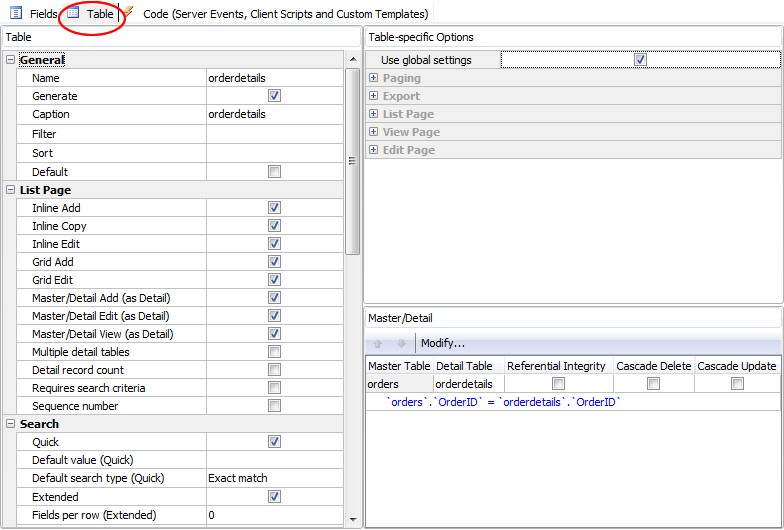
After loading the database, the tables will be shown in the database pane on the left pane. To access ALL setting for a table (including Multi-page, Table-specific Options and Master/Detail), click the table node of any table in the database pane and then click the [Table] tab to go to the Table Setup page. This is the setup page for a single table.
You can also click on the [Tables] or [Views] or [Custom Views] or [Reports] or [Linked Tables] node in the database pane to go to the Tables Setup page which is a grid showing the most frequently used settings for all tables. If you need to set these settings for multiple tables, this page allow you to view and set them quickly. Note that this page does not include Multi-page, Table-specific Options and Master/Detail.
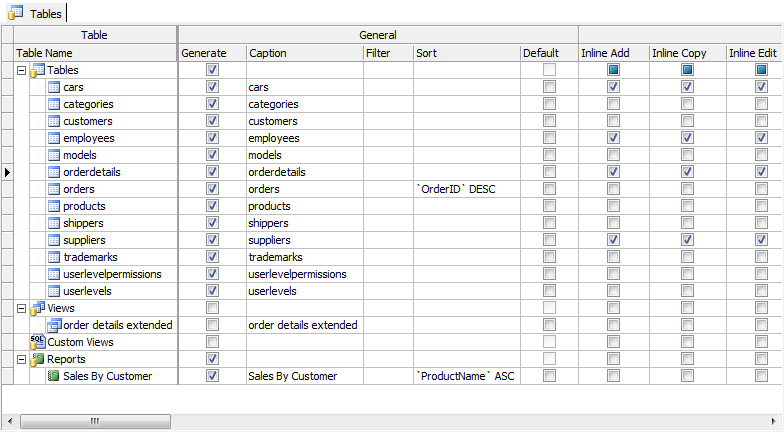
If you prefer to view the tables in alphabetical order, click [Tools]->[Sort Tables Alphabetically] (see Tools).
You can change the display order of the tables by drag-and-drop. Select a table by clicking the first column - [Table Name] column, then drag and drop to where you want. Note that a table cannot be moved out of its parent node.
Note that changing the display order of table in this Table Setup page does not change the display order of the tables in the menu. To change the display order of the menu item, click [Tools]->[Menu Editor] (see Tools).
The available table level settings are as follows:
General
| Generate | Select/unselect a particular table for generation |
| Caption | To change the caption of a table, click on [Caption] box to make the necessary change. Note If you use Multi-Language (see ASP.NET Settings), use Multi-Language Property Editor, see Tools for details. |
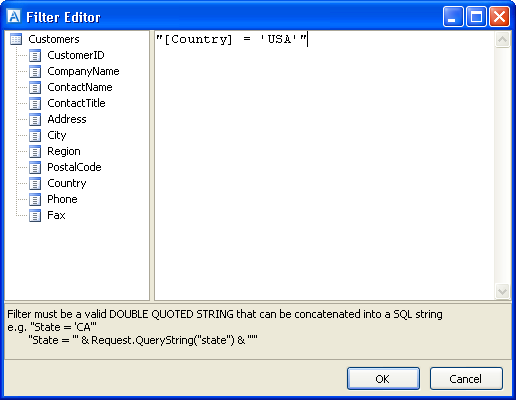
| Filter | Specify a filter (WHERE clause) for the table. Click the [...] button in [Filter] column, the Filter Editor will popup. Enter your filter, you can drag the field names from the left pane to the editor, the SQL identifier quote characters will also be added for you automatically.
Note The filter must be a valid C# expression (of string) and it will be concatenated to the SQL. If it is a text string, it should be double quoted. For example, "State = 'CA'". |
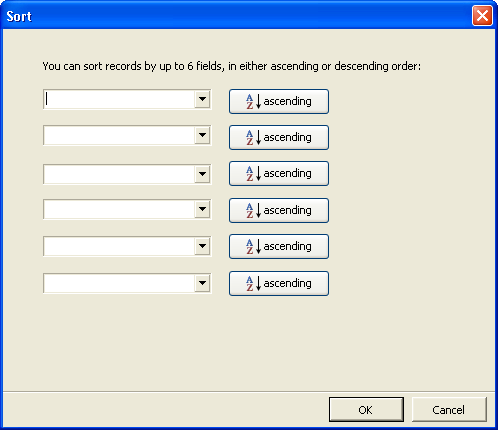
| Sort | Specify the sort fields (ORDER BY clause) for the table. Click the [...] button in [Sort] column, the following dialog box will popup. You can choose up to 6 fields, in either ascending or descending order.
|
| Default | Set a Table as the Default Table. The Default table is the first table the user see when visiting your site. Select the table you want in the [Default] column. |
List
Settings for List pages:
| Inline Add | Enable/disable Inline Add function for the table. Inline Add allows users to add a record within the List page. Default is disabled. |
| Inline Copy | Enable/disable Inline Copy function for the table. Inline Copy allows users to copy a record within the List page. Default is disabled. |
| Inline Edit | Enable/disable Inline Edit function for the table. Inline Edit allows users to edit a record within the List page. Default is disabled. |
| Grid-Add | Enable/disable Grid-Add function for table. Allows users to add multiple records to the table. Default is disabled. If the table is a detail table (in master/detail relationship), Enabling this option also enable Master/Detail-Add. |
| Grid-Edit | Enable/disable Grid-Edit function for table. Grid-Edit allows users to edit multiple records within the List page. Default is disabled. If the table is a detail table (in master/detail relationship), Enabling this option also enable Master/Detail-Edit. |
| Import | Enable/disable Import function for table. The Import feature enables you to import records from an external Excel/CSV file to database table. Default is disabled. Read Import Data for more information. |
| Requires Search Criteria | Specifies if the List page requires search criteria. Default is disabled. Notes
|
| Sequence number | Add a column to show the sequence number (record index) of the record in the recordset. |
| Detail Add | Enable/disable Master/Detail-Add function for table (as detail table). Allows users to add multiple records to the table. Default is disabled. |
| Detail Edit | Enable/disable Master/Detail-Edit function for table (as detail table). Grid-Edit allows users to edit multiple records within the List page. Default is disabled. |
| Detail Record Count | Specifies if the number of detail records for the master record should be displayed. Default is disabled. Note
|
Search
| Quick | If enabled, Quick Search panel (including Extended Quick Search) will be generated with the List page. Default is enabled. Quick Search searches text fields and optionally numeric fields only. These fields are selectable in Field Setup page. You may want to hide the Quick Search form for tables that do not have searchable fields. |
| Default value (Quick) | Default value for Quick Search. If no user input for Quick Search, this default value will be used. After users entering their search criteria, the default value will not be used. |
| Default search type (Quick) | Default search type for Quick Search. Possible values are:
|
| Extended | If enabled, Extended Quick Search inputs will be generated in the List page. Default is enabled. |
| Fields per row (Extended) | For use with Extended Quick Search. Specifies the number of fields per row in the Quick Search panel. Default is 0 (unspecifed), which means one field per row. |
| Advanced | If enabled, an Advanced Search Page will be generated and linked to the List page. Default is disabled. |
| Modal dialog (Advanced) | For use with Advanced Search. Use modal dialog to show the Advanced Search page. |
| Highlight | If this setting is checked, the search criteria in the search result (List page) will be highlighted. Default is disabled. |
View
| View | If enabled, a View page for the table will be generated (for displaying a record). Default is enabled. Note The table must have primary key or this setting will be unchecked during generation. |
| Modal dialog | Use modal dialog to show the View page. |
Add
Settings for Add pages:
| Add | If enabled, an Add page for the table will be generated (for adding/copying a record). Default is enabled. Note The table must have primary key or this setting will be unchecked during generation. |
| Copy | If enabled, Add page will be generated and "Copy" links will be generated for record(s) in List/View page (for copying). Default is enabled. (If this setting is enabled, the "Add" setting is also enabled by default as copying requires the Add page.) Note The table must have primary key or this setting will be unchecked during generation. |
| CAPTCHA | Enable/disable CAPTCHA function for the Add page. Default is disabled. (CAPTCHA requires that the user type the letters or digits of a distorted image before submitting a form to prevent automated software from posting spam to your web application.) Notes
|
| Confirm | Enable/disable confirmation function for the Add page. Default is disabled. If enabled, there will be a confirmation step in the Add page, users will be able check their input before actually inserting the record. Note Not applicable to Inline/Grid-Add/Copy. |
| Modal dialog | Use modal dialog to show the Add page. |
Edit
| Edit | If enabled, an Edit page for the table will be generated (for updating a record). Default is enabled. Note The table must have primary key or this setting will be unchecked during generation. |
| CAPTCHA | Enable/disable CAPTCHA function for the Edit page. Default is disabled. (CAPTCHA requires that the user type the letters or digits of a distorted image before submitting a form to prevent automated software from posting spam to your web application.) Notes
|
| Confirm | Enable/disable confirmation function for the Edit page. Default is disabled. If enabled, there will be a confirmation step in the Edit page, users will be able check their input before actually updating the record. Note Not applicable to Inline/Grid-Edit. |
| Check Conflicts | Check if the record is changed by other user before updating the record. Notes
|
| Modal dialog | Use modal dialog to show the Edit page. |
Delete
| Delete | If enabled, a Delete page for the table will be generated (for deleting record or multiple records). Default is enabled. Note The table must have primary key or this setting will be unchecked during generation. |
| Inline Delete (Modal dialog) | Use modal dialog to show the deletion confirmation page. |
Multi-Update
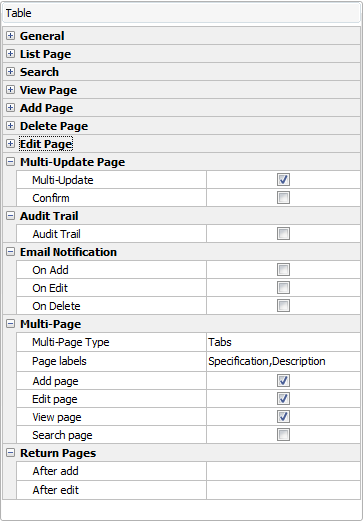
| Multi-Update | If enabled, a Multi-Update page for the table will be generated (for updating multiple records). Default is disabled. With this feature you can select multiple records in the List page and update all records at the same time. You can select fields (see Field Setup page) to be included in the Multi-Update page. Note The table must have primary key or this setting will be unchecked during generation. |
| Confirm | Enable/disable confirmation function for the Multi-Update page. Default is disabled. If enabled, there will be a confirmation step in the Multi-Update page, users will be able check their input before actually updating the selected records. |
| Modal dialog | Use modal dialog to show the Multi-Update page. |
Audit Trail
To use this feature, you must also specify the [Audit Trail folder] or database table and field under [ASP.NET]->[General Options] tab. See ASP.NET Setup for details.
| Audit Trail | If audit trail for a table is enabled, when an user add(copy)/edit/delete a record or login/logout, the related information will be logged in a log file or into the specified database table. Note By default all add(copy)/edit/delete info will be logged, if you want to select what to log, or want to log search/view activities also, use the Audit Trail Extension, also see [Tools]->[Extensions]. |
Email Notification
To use this feature, you must also specify the [Email Settings] under [ASP.NET]->[Email Settings] tab. See ASP.NET Setup for details.
| On Add | If enabled, when an user add a record, an email will be send to pre-set recipient email address(es). Default is disabled. |
| On Edit | If enabled, when an user edit a record, an email will be send to pre-set recipient email address(es). Default is disabled. |
| On Delete | If enabled, when an user delete a record, an email will be send to pre-set recipient email address(es). Default is disabled. |
Other than above Tables Setup page, you can also click on a particular table node (under [Tables] or [Views] or [Custom Views] or [Reports] or [Linked Tables] node) in the database pane to go to the Table Setup page for that table. The Table Setup page includes the following tabs: Table, Fields, and Server Events/Client Scripts. Click on the Table tab you'll see settings for the selected table only. The right side includes two panel - the [Table-specific Options] panel and the [Master/Detail] panel (see below), the left side contains settings same as above (but for the selected table only) and other settings:
Multi-Page
Normally each field is displayed as a table row in the View/Add/Edit page, this Multi-Page features allow you to display divide the fields into pages and display only one page at a time. To enable, at least one field with page number larger than 1 must be set up in Field Setup page. Multi-Page is displayed as tabs in the generated scripts.
| Multi-Page type | Specifies how to display the pages. Possible values are:
|
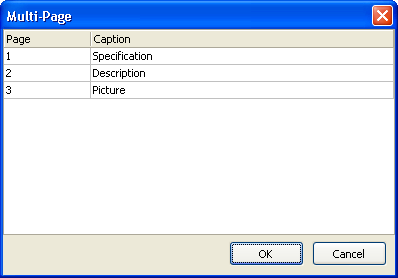
| Page Labels | Specifies the page captions of each page in the Multi-Page. Click the [...] button and enter the page captions and click [OK] to save.
If page captions are not specified, "Page n" will be used by default. To add a page, go to Field Setup page, specify the page number for the fields in the page first. Note If you use Multi-Language (see ASP.NET Settings), use Multi-Language Property Editor, see Tools for details. |
| Add page | Specifies if Multi-Page is enabled for Add page. |
| Edit page | Specifies if Multi-Page is enabled for Edit page. |
| View page | Specifies if Multi-Page is enabled for View page. |
| Register page | Specifies if Multi-Page is enabled for register page. This setting is only available for the user table specified in Security Settings. |
Return Pages
| After Add | Specifies the return URL after a new record is added. Predefined settings are: Add Page - returns to the Add page of the current table You can also enter your own URL. Notes
Example 1 "MyPage" (Note: Includes the double quotes). Example 2 "MyPage?xxx=" + UrlEncode(<Field>.DbValue) e.g. "MyPage?ID=" + UrlEncode(ID.DbValue) Example 3 "<DetailTable>list?a=gridadd&showmaster=<Table>&fk_<KeyField>=" + UrlEncode(<Field>.DbValue) e.g. "OrderDetailslist?a=gridadd&showmaster=Orders&fk_OrderID=" + UrlEncode(OrderID.DbValue) Example 4 "<DetailTable>add?showmaster=<Table>&fk_<KeyField>=" + UrlEncode(<Field>.DbValue) e.g. "OrderDetailsadd?showmaster=Orders&fk_OrderID=" + UrlEncode(OrderID.DbValue) |
| After Edit | Specifies the return URL after a record is edited. Notes
|
| After Grid-Add | Specifies the return URL after Grid-Add is done. Predefined settings are: List Page - returns to the List page of the current table (default) You can also enter your own URL. The URL must be a valid C# expression. If it is a string, it should be double quoted. |
| After Grid-Edit | Specifies the return URL after Grid-Edit is done. Predefined settings are: List Page - returns to the List page of the current table (default) You can also enter your own URL. The URL must be a valid C# expression. If it is a string, it should be double quoted. |
| After Register | Specifies the return URL after an user is registered. This setting is only available for the user table specified in Security Settings. Notes
|
Table-specific Options
These options are same as the List page options as described in ASP.NET Setup except that the options are table-specific, meaning that you can have different List page options for different tables. To use table-specific options, select a table in the grid, uncheck [Use global settings] in the [Table-specific Options] panel, the panel will be enabled for you to setup.
Master/Detail
When you set up a master/detail relationship, you link two tables so that all the records of one table (the detail table) always correspond to the single current record in the other table (the master table). Each table can have multiple master tables and details tables.
You can establish master/detail (one-to-many) relationship between two tables as follows
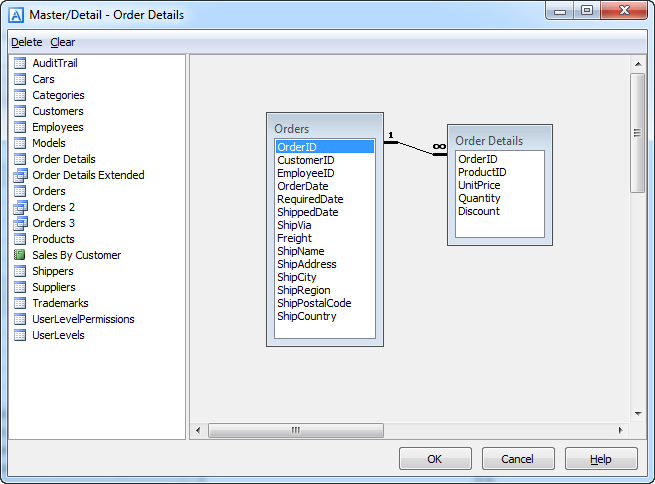
If you want to remove a relationship, select the link in the diagram and click [Delete]. After setup, click [OK] to confirm.
In most cases, master and detail tables are joined by one field, you have one link between the master/detail table and you have one row in the Master/Detail panel only.

Also See: